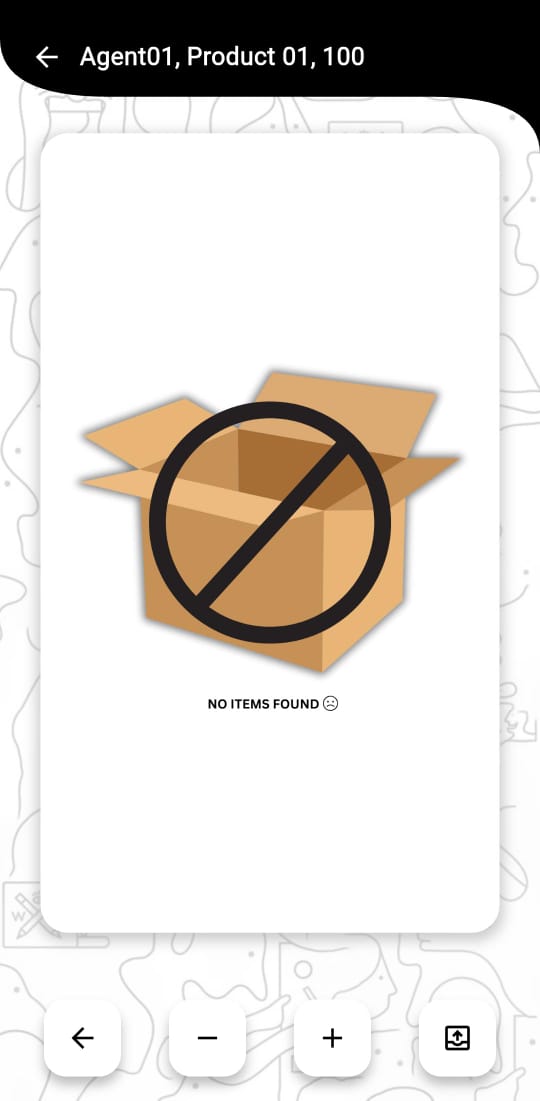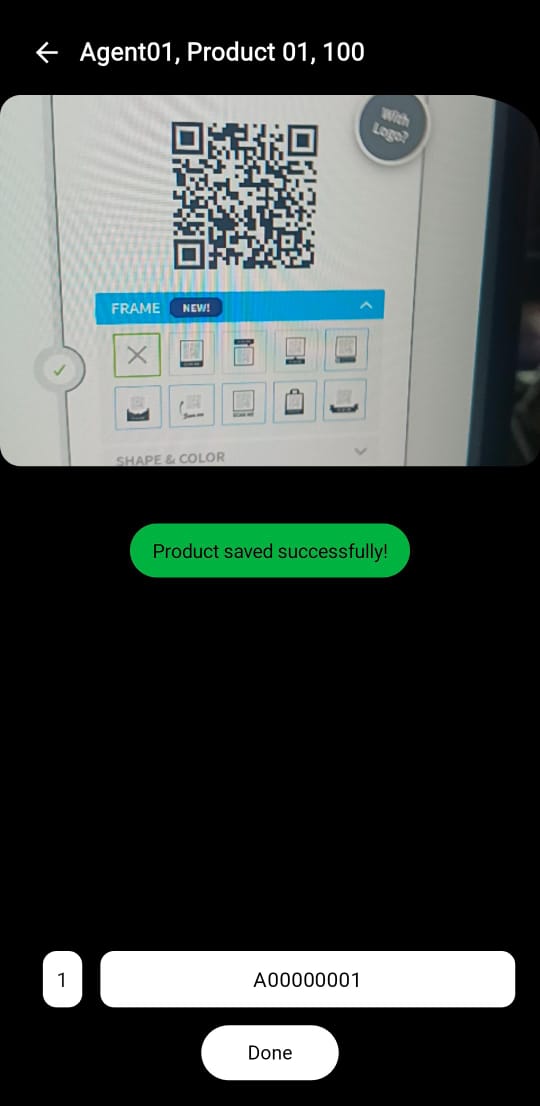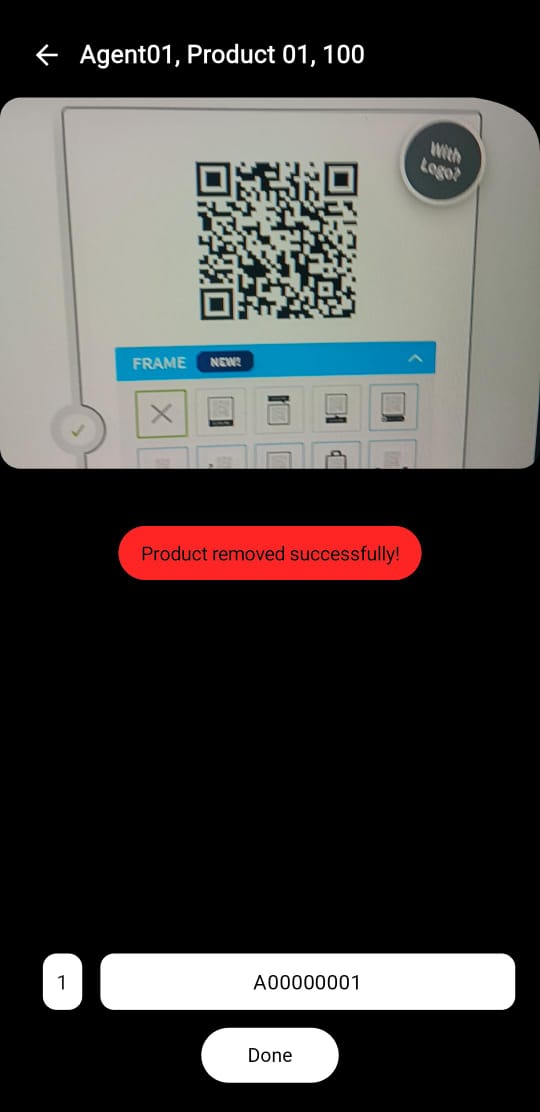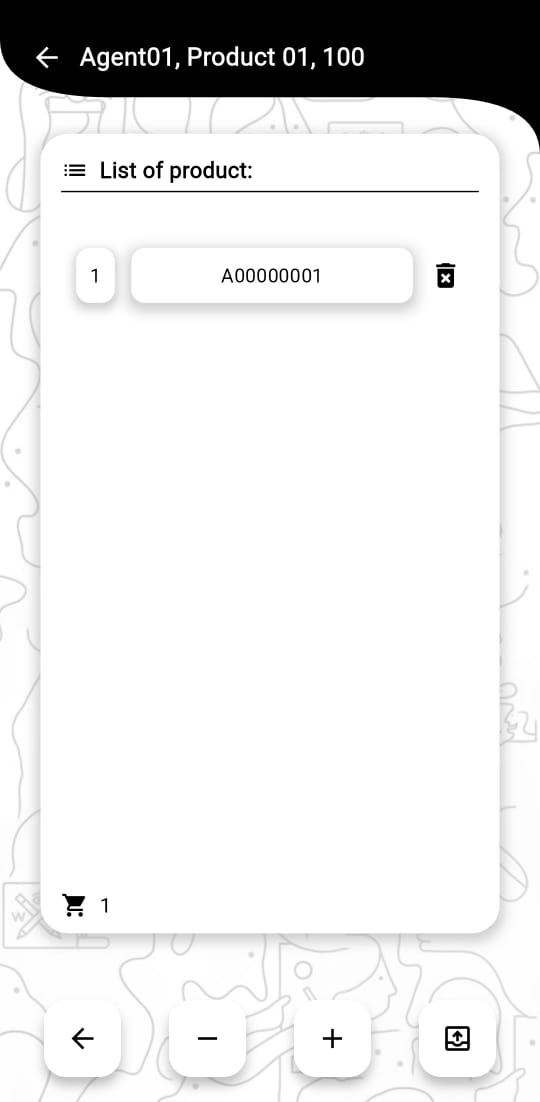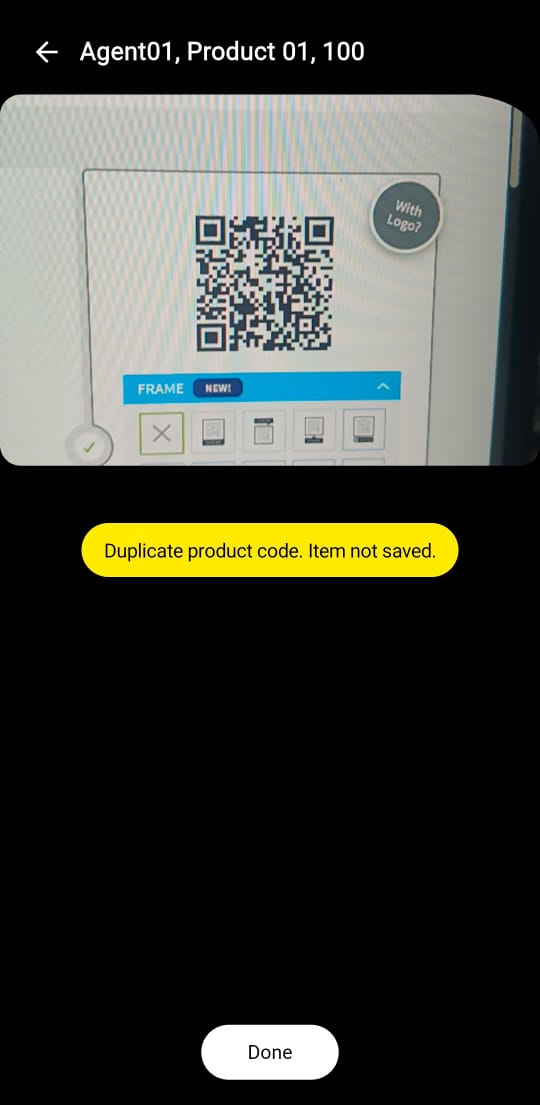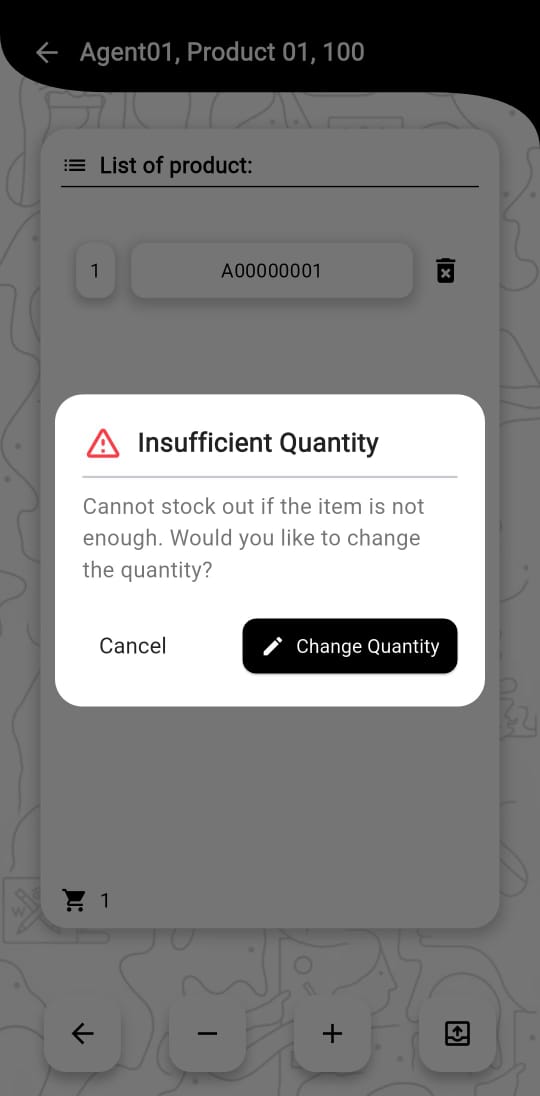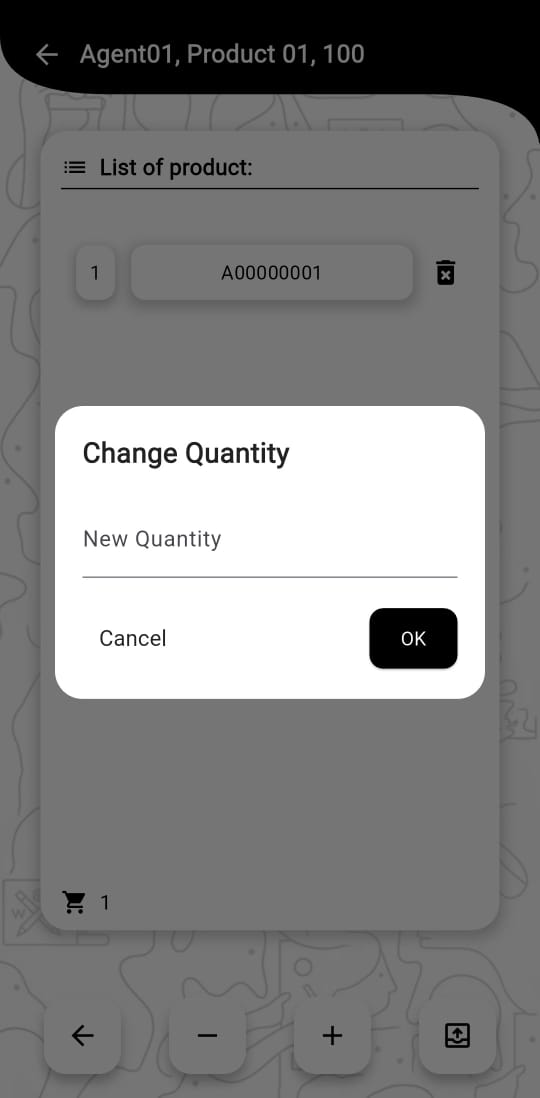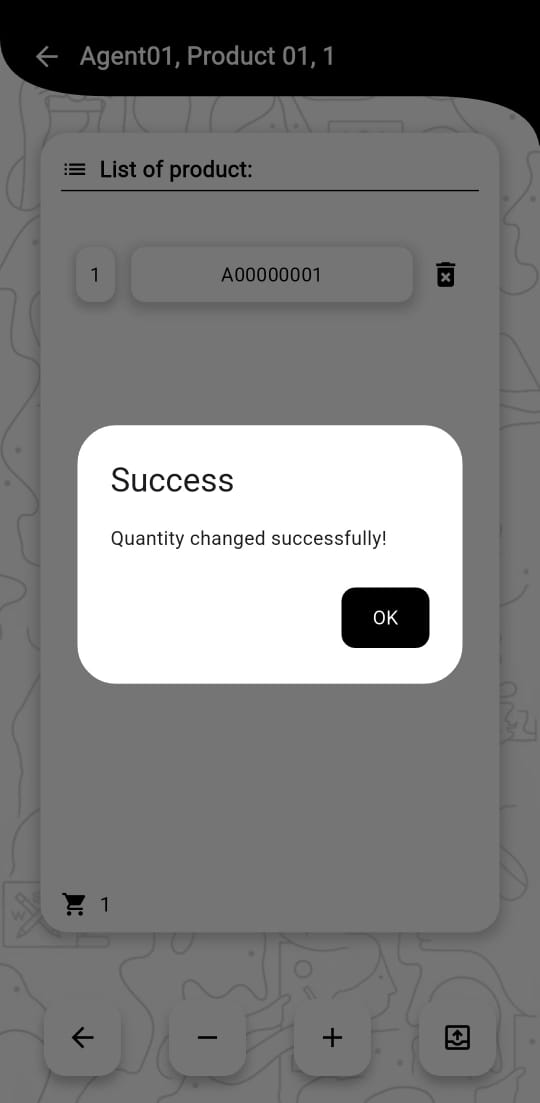
Scan the items into the generated QR Box to track and verify the items.
Scan item is a feature in the app that allows you to scan the items into the generated QR Box. This helps you to track and verify each of the items of your products in the box. You can scan the items using the developed scanning code camera in the same app. The scanned items will be added to the box and you can view the details of the items in the box.
Click the “+” button to add a new item into the box. The system will display the scanner, allowing you to scan the QR code on the product and link it directly to the selected box.
Scan the item using the QR codes generated by the system. Each scan automatically registers the product in the box and database, while tracking its activity. Once all desired items are added, simply click “Done” to complete the process.
To remove an item from the box, click the “-” button and scan the QR code of the product you wish to remove. The system will update the box contents and database accordingly.
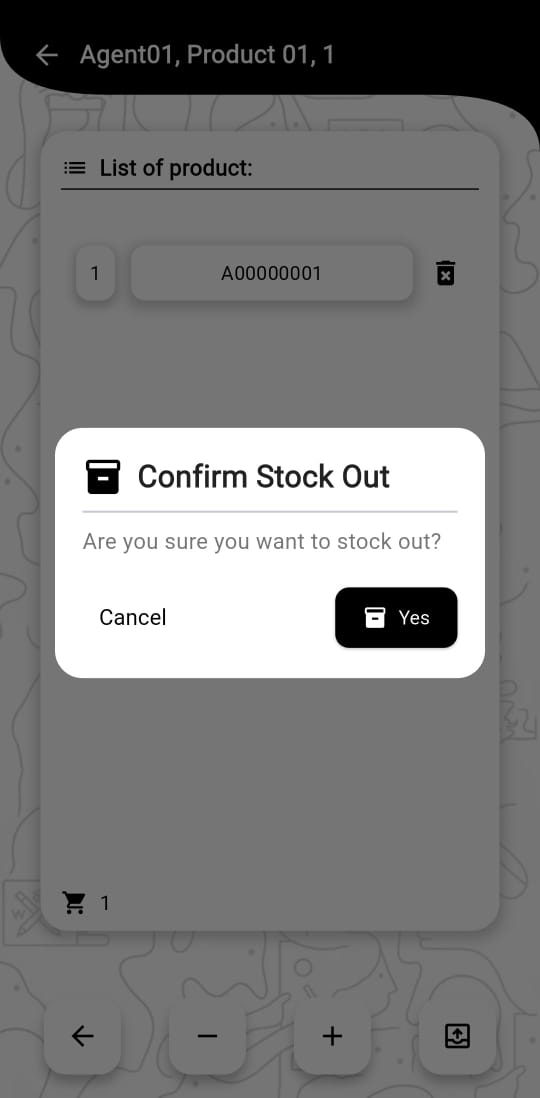
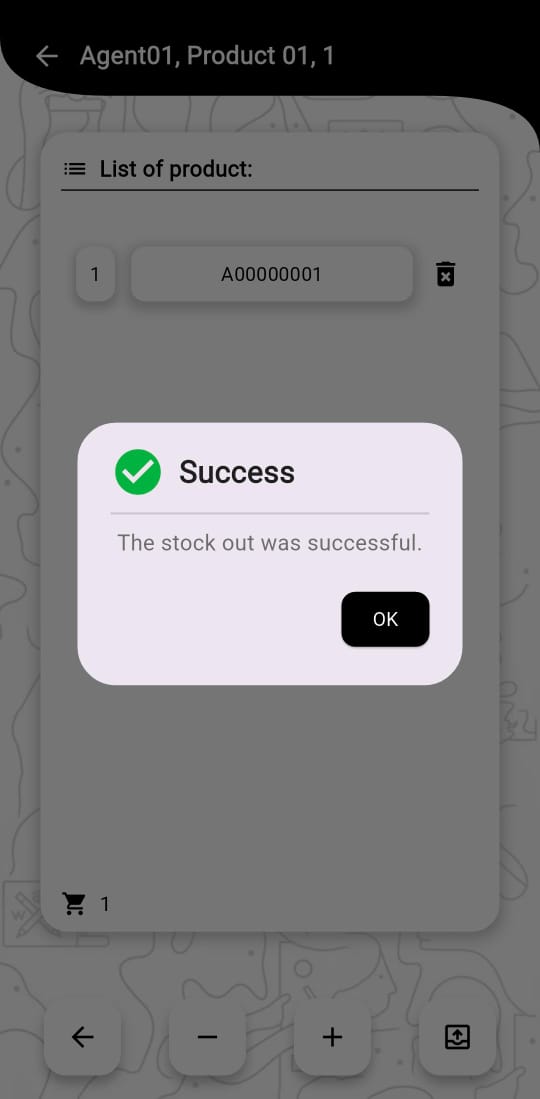
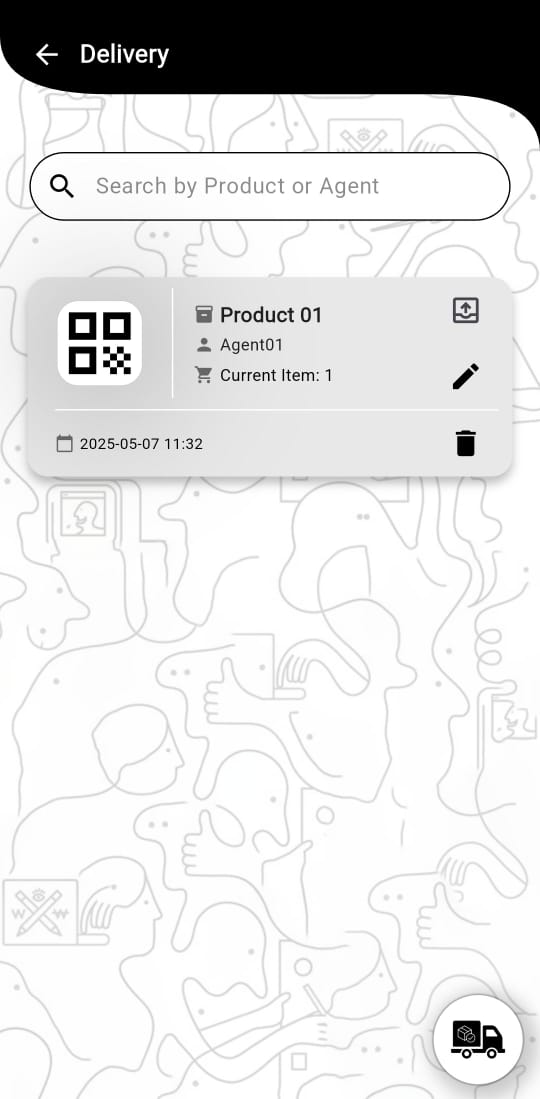
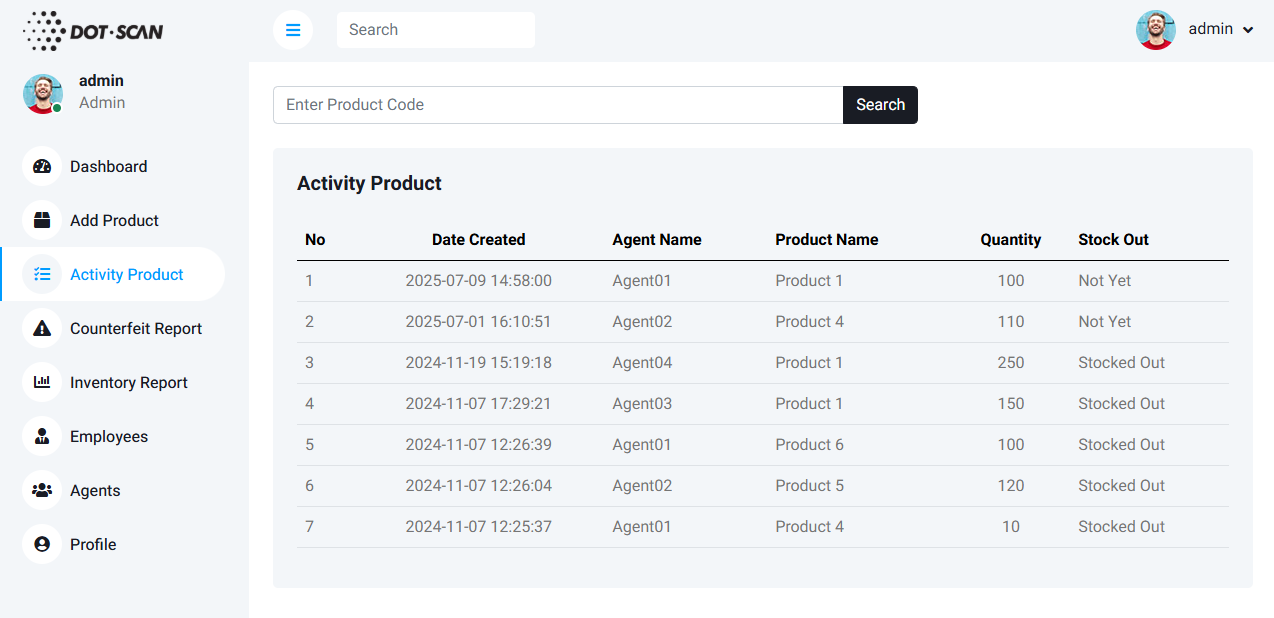
Once the box is filled, click the stock out icon button to finalize it. This action will update the box status to “Stocked Out” and allow you to view detailed information about the items contained within.
* This is a placeholder image. Your dashboard will show the list of generated QR boxes with product codes, timestamps, agent's name, quantity and status.
* This is a placeholder image. The code should be scanned using the code generated by the system.
Scan once to register an entire box of items.
Track movement at the box level to see batch performance.
Reduce mix‑ups when shipping multiple batches.